Do I need to install anything?
To run a show, yes: the desktop app has versions for Windows (x64 or ARM64; installer or portable, no install), macOS (Intel and Apple Silicon), and Linux (x86_64 or ARM64). Download it in the Download section above. This site also has a free demo in your browser (we recommend Chrome on desktop) that needs no installation.
What can I do in the browser demo?
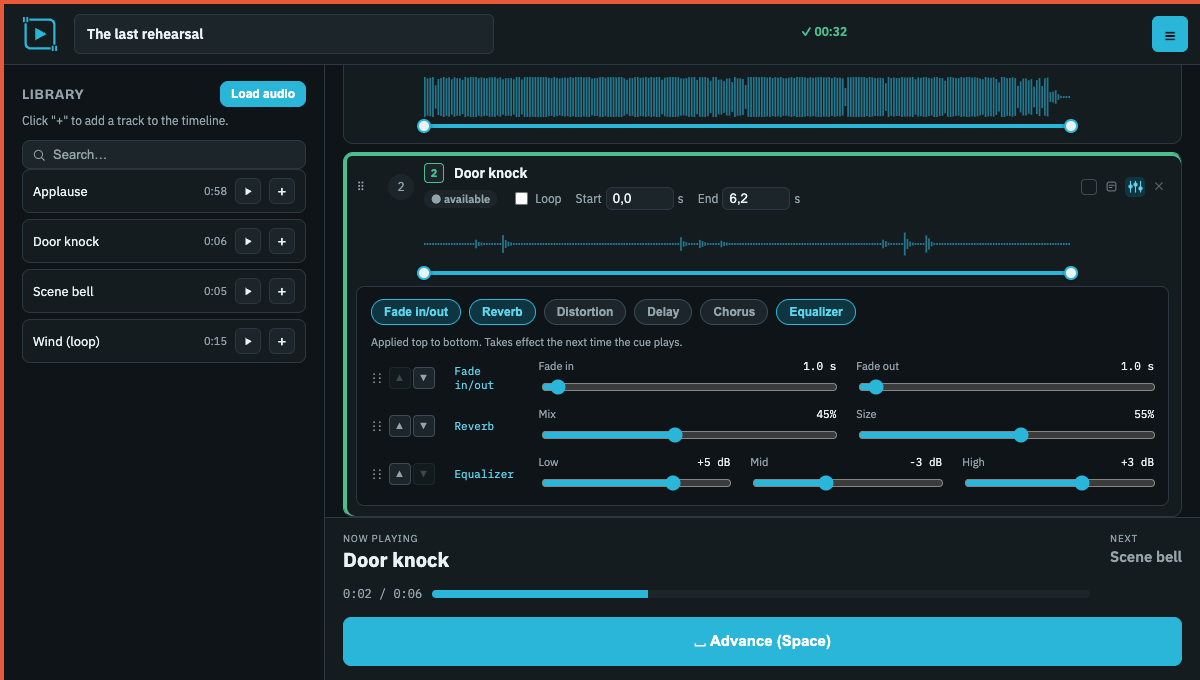
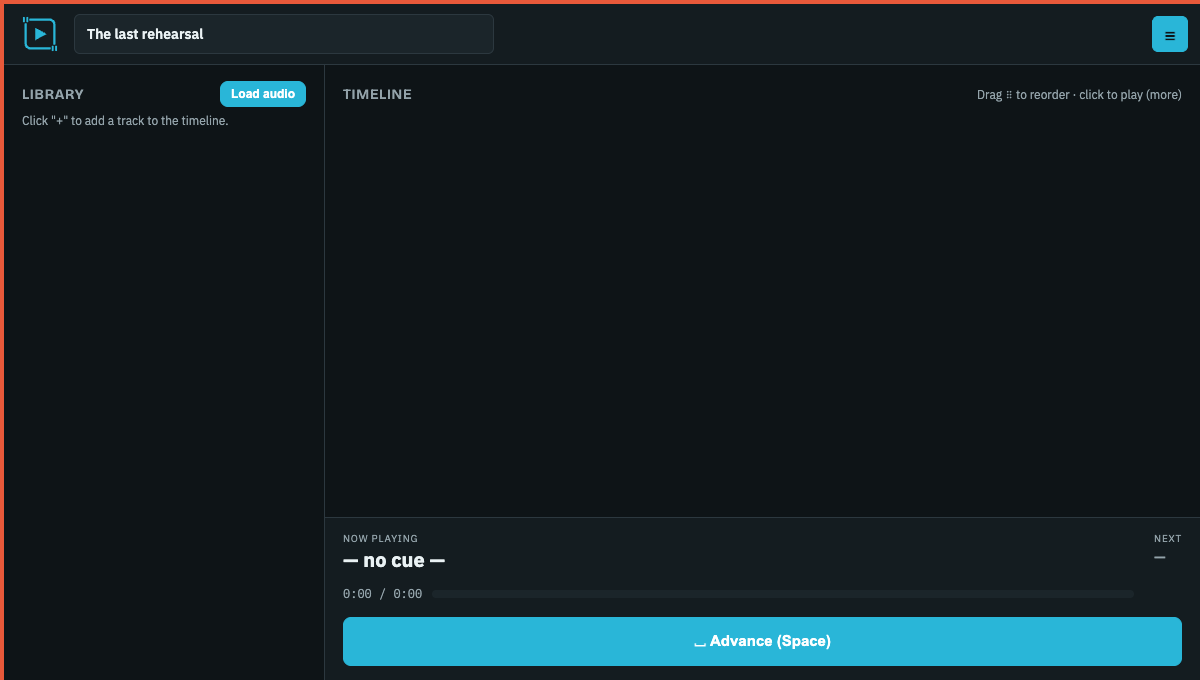
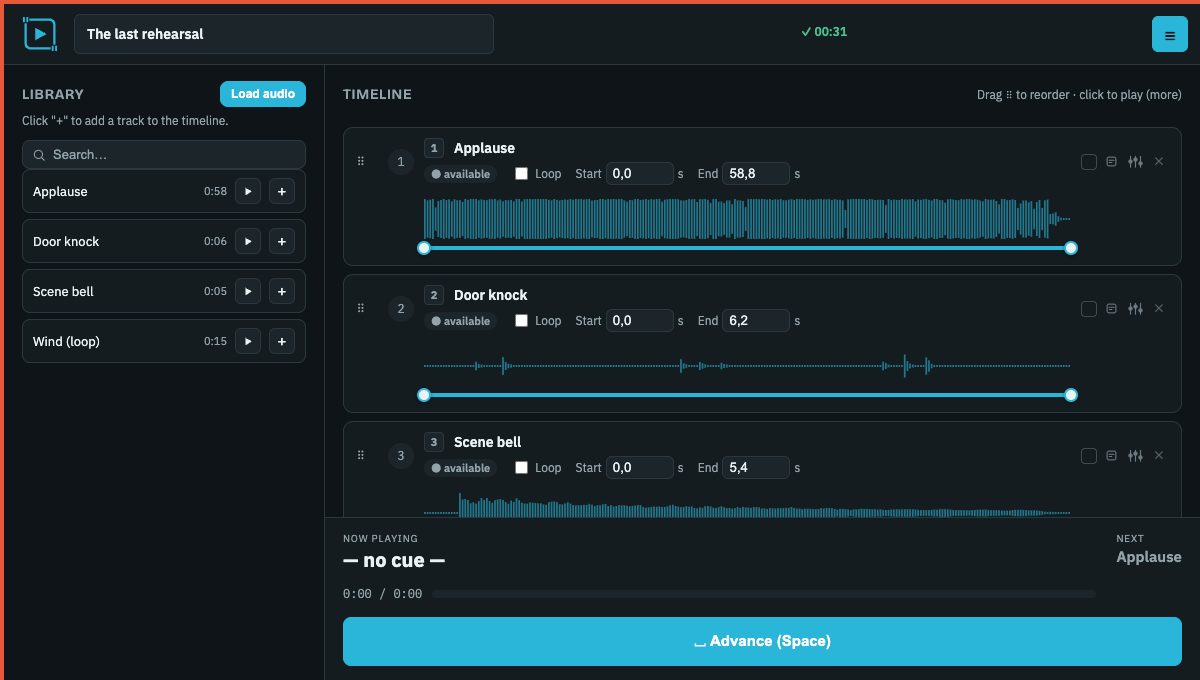
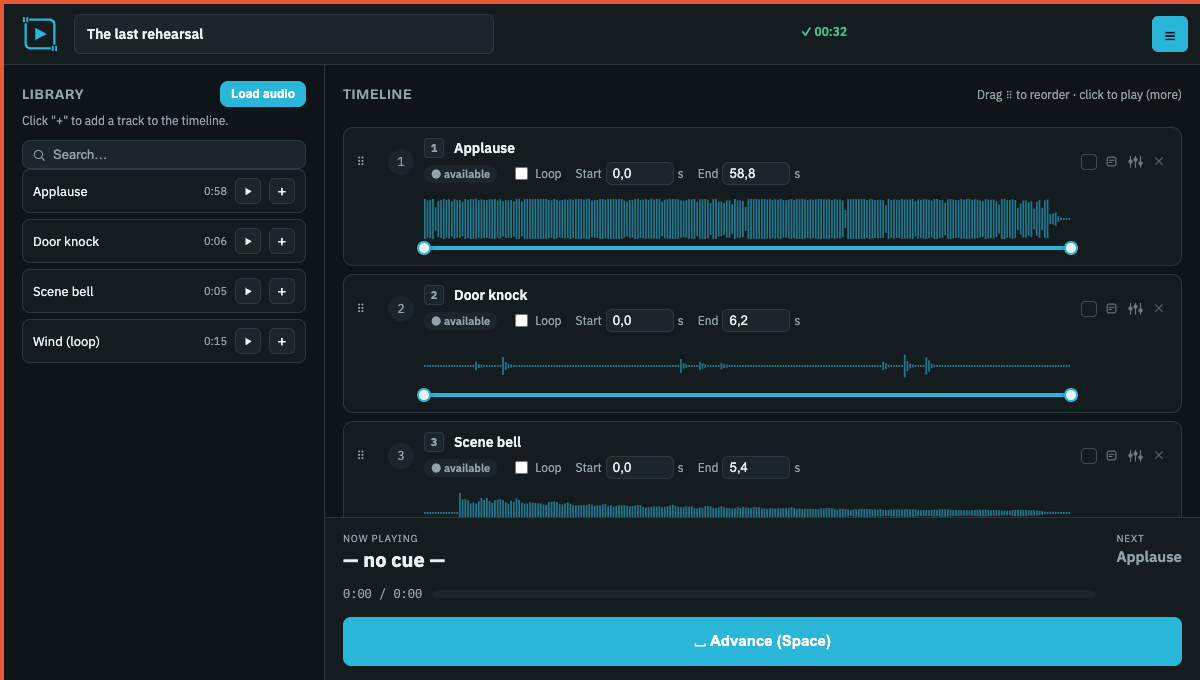
Play and adjust the example audio: trimming, loops, fades, effects, keyboard shortcuts. The demo does not import your audio, open or save projects, and nothing you do in it is kept. Reload and the example starts over. Creating, saving, and exporting projects happens in the desktop app.
Can I play multiple tracks at once?
No. Live Player plays one cue at a time. Triggering another cue stops the previous one. This workflow suits shows with sequential music and sound-effect entrances.
Which audio formats work?
MP3, WAV, M4A, AAC, OGG, FLAC, and AIF/AIFF. In practice it depends on what your computer's system can decode; files that fail to open show an error in the library without affecting the rest.
Do I need internet to run a show?
No. Audio is processed on your computer and Live Player Free works offline. The internet is only used to check for updates and for the first activation of a paid license; after that the app works offline. Nothing is checked when you press Space or during a performance.
Where are my audio and projects stored?
On your computer. The working project is a .lpp file that saves itself after every change, and the audio lives in a local cache shared between projects. Nothing is uploaded or synced between computers.
How do I move a show to another computer?
Use "Export complete project" in the ☰ menu. It creates a portable .lpe file with the sequence and all available audio. On the other computer, open the .lpe with ☰ > Settings > Open project (or double-click the file).
How do updates work?
The installed app checks for new versions on launch and in Help > Updates. Downloading and installing is always your call, only with playback stopped and the project saved, and packages are verified by signature. The Windows portable version and .deb/.rpm packages do not update themselves: download again from this site.
What if the sound stops in the middle of a show?
If a cue shows as playing but there is no sound (it happens on some computers after sleep), open ☰ > Settings and click Restart audio. The cue carries on from where it was. The app also rebuilds the audio output by itself after the computer wakes up, never while a cue is playing.
What comes in the example project?
Stage effects (bell, applause, rain, door knock, doorbell, clock, wind and whistle) and two public-domain classical pieces: Grieg, In the Hall of the Mountain King, and Vivaldi, Summer (Presto). You can use them in rehearsal without worrying about copyright.
How much does it cost?
Live Player Free costs nothing, forever, with unlimited shows and cues and every essential feature. Pro and Organization licenses are a one-time payment with 2 years of updates included (see the License terms). Buying licenses is not open on this website yet.